
NOOBS: Raspberry Pi Installation Guide for Beginners

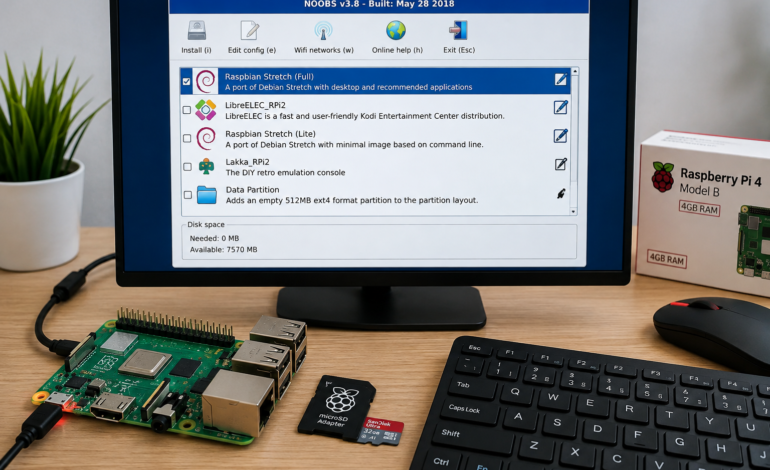
Raspberry Pi became popular partly because it made computing, programming, and electronics more accessible. One of the tools that once helped beginners get started was NOOBS, short for “New Out Of Box Software.” It provided a relatively simple way to prepare a Raspberry Pi and choose an operating system without requiring users to understand traditional disk-image writing.
However, the Raspberry Pi ecosystem has changed considerably. NOOBS is now a legacy solution, while Raspberry Pi Imager is the modern installation tool recommended by Raspberry Pi. Official documentation currently recommends Raspberry Pi Imager for installing Raspberry Pi OS and other operating systems.
This guide explains NOOBS, its original purpose, NOOBS installation, the historical Raspberry Pi setup with NOOBS, its relationship with Raspberry Pi OS, and what beginners should use today.
What Is NOOBS?
NOOBS stands for New Out Of Box Software. It was designed to make the initial Raspberry Pi installation easier for beginners. Instead of manually writing an operating-system image to an SD card, users could traditionally place the NOOBS files on a prepared card and launch an installer interface when the Raspberry Pi started.
The original NOOBS software was therefore not itself a complete operating system. It functioned as an installation and recovery environment that helped users select and install supported operating systems. Raspberry Pi introduced NOOBS in 2013 specifically as a beginner-friendly way to simplify first-time setup.
This distinction is important because NOOBS operating system is sometimes used incorrectly in online searches. NOOBS was not equivalent to Raspberry Pi OS. Instead, it helped users install an operating system that would eventually run the Raspberry Pi.
Why Was NOOBS Created?
Traditional operating-system installation could be intimidating for someone unfamiliar with Linux, disk images, partitions, and SD-card preparation. NOOBS reduced some of that complexity through a graphical selection process.
The historical approach was especially useful during a Raspberry Pi beginner setup because users could select an available operating system from the NOOBS interface. This allowed beginners to focus on their project rather than immediately learning the technical details of image flashing.
How Does NOOBS Work on Raspberry Pi?
Understanding how does NOOBS work on Raspberry Pi requires looking at its role in the original boot process.
A user would traditionally obtain the NOOBS package, prepare a compatible Raspberry Pi SD card, and copy the required files onto it. When the Raspberry Pi started, the Raspberry Pi boot process loaded the NOOBS environment instead of immediately launching a desktop operating system.
The interface then presented operating-system choices. After selecting one, NOOBS prepared the card and installed the selected system.
This approach was different from modern imaging because the installer itself was placed on the storage card. The original Raspberry Pi documentation described NOOBS as an SD-card-based installation method that could provide an operating-system selection menu during the first boot.
What Is NOOBS Used For?
The question what is NOOBS used for has a straightforward historical answer: NOOBS was used to simplify Raspberry Pi operating-system installation.
It could help beginners:
- Prepare a Raspberry Pi for first use
- Select a supported operating system
- Install an operating system onto an SD card
- Access recovery-related functionality
- Experiment with different supported operating systems
- Complete a Raspberry Pi installation without manually flashing an image
Its recovery functionality also explains why the term Raspberry Pi recovery environment sometimes appears in NOOBS discussions.
However, this historical purpose should not be confused with the current Raspberry Pi installation workflow.
Is NOOBS Still Available for Raspberry Pi?
One of the most common searches today is is NOOBS still available for Raspberry Pi?
NOOBS is no longer the recommended installation solution. Raspberry Pi has moved to a modern imaging workflow, and official documentation now recommends Raspberry Pi Imager for installing Raspberry Pi OS.
Similarly, users asking is still supported on Raspberry Pi should understand that it is a legacy product rather than the current installation standard. Raspberry Pi representatives have stated that NOOBS is no longer recommended and that development had stopped.
Therefore, older NOOBS software for Raspberry Pi should mainly be considered when dealing with historical hardware, archived projects, or an existing setup that specifically depends on NOOBS.
NOOBS Download: What Beginners Should Know
Searches for download, installer download, and Raspberry Pi NOOBS download can be confusing because many older tutorials still appear in search results.
Historically, obtaining involved downloading the installer package and extracting its contents onto a freshly prepared SD card. Raspberry Pi’s original introduction explained that users could download the ZIP archive and unpack it onto a formatted SD card.
Today, however, new Raspberry Pi users should not automatically follow an old Raspberry Pi download for beginners tutorial. The current official workflow uses Raspberry Pi Imager, which can download and write an operating system directly to compatible storage.
Where to Download NOOBS for Raspberry Pi?
If someone asks where to download for Raspberry Pi, the important consideration is the reason for needing it.
For a new installation, there is generally little reason to choose the legacy workflow. Raspberry Pi’s current operating-system documentation directs users toward Raspberry Pi Imager for OS installation.
For an older project, however, users may encounter archived packages referenced by historical documentation or project instructions. Before using one, check the Raspberry Pi model, intended operating system, and compatibility requirements.
NOOBS Installation Guide for Beginners
A traditional installation guide for beginners consisted of several basic stages. Although this process is now historical, understanding it can help users maintain older Raspberry Pi systems.
Step 1: Obtain the NOOBS Package
The first stage was the installer download. Users would obtain the appropriate package and extract the files.
The files needed to remain organized because the installer depended on its expected directory structure.
Step 2: Prepare the NOOBS SD Card
The next stage involved preparing the SD card.
Important files should always be backed up before formatting or modifying storage. A clean card was traditionally used for the NOOBS setup, and the extracted installer files were copied onto it.
This created the foundation for the historical bootable SD card.
Step 3: Start NOOBS Boot
After inserting the card into the Raspberry Pi and connecting the necessary peripherals, users could power on the device.
During NOOBS boot, the installer environment appeared instead of immediately launching a desktop operating system.
Users could then view the available operating-system choices.
Step 4: Select an Operating System
The user selected the desired operating system and started the installation.
This was the central advantage of the historical approach. Beginners did not necessarily need to understand manual image writing because the installer handled the operating-system preparation.
Step 5: Restart the Raspberry Pi
After installation, the Raspberry Pi could restart into the newly installed system.
At that point, users would interact with the actual Raspberry Pi operating system, rather than the installer.
Raspberry Pi OS with NOOBS: Understanding the Difference
A common source of confusion is the phrase Raspberry Pi OS with .
NOOBS and Raspberry Pi OS performed different jobs.
NOOBS was an installation and recovery environment.
Raspberry Pi OS is the actual operating system used to operate the Raspberry Pi.
Today, Raspberry Pi describes Raspberry Pi OS as its official operating system. It is based on Debian and provides the software environment required for everyday Raspberry Pi computing.
Therefore, asking what is the difference between and Raspberry Pi OS can be answered simply:
NOOBS helped install an operating system, while Raspberry Pi OS is the operating system itself.
Raspberry Pi OS includes the Linux foundation, desktop environment, system utilities, applications, and other components needed for normal use.
Raspberry Pi Operating System Installation Today
Modern Raspberry Pi operating system installation is considerably more streamlined.
Raspberry Pi currently recommends Raspberry Pi Imager for installing Raspberry Pi OS. The official documentation explains that Imager is available for Windows, macOS, and Linux and can write operating-system images to storage devices such as microSD cards.
The basic modern workflow is:
- Install Raspberry Pi Imager.
- Select the Raspberry Pi model.
- Select an operating system.
- Select the storage device.
- Configure available options.
- Write the operating system to the storage.
- Insert the storage into the Raspberry Pi.
- Start the device.
This eliminates many of the manual file-copying steps associated with traditional installation.
NOOBS vs Raspberry Pi Imager for Beginners
The comparison NOOBS vs Raspberry Pi Imager for beginners is particularly useful for anyone reading an older tutorial.
| Feature | NOOBS | Raspberry Pi Imager |
|---|---|---|
| Purpose | Historical installer/recovery environment | Modern OS imaging tool |
| Installation method | Copy installer files to SD card | Write OS image directly |
| Beginner friendly | Yes, historically | Yes, currently |
| Current recommendation | Legacy | Recommended |
| Manual file copying | Required historically | Generally unnecessary |
| OS selection | Through NOOBS interface | Inside Imager |
| Modern Raspberry Pi workflow | No | Yes |
Raspberry Pi Imager was introduced to simplify the process of obtaining current images and writing them to SD cards across Windows, macOS, and Linux.
For a new project, Imager is therefore the more practical choice.
Raspberry Pi SD Card Setup
Whether using an old installer or a modern imaging tool, storage preparation remains an important part of Raspberry Pi setup.
A Raspberry Pi SD card must be suitable for the device and installation method. Users should also ensure that important files are backed up before writing an operating system because the process can overwrite existing data.
When using Raspberry Pi Imager, the official documentation specifically warns users to select the correct storage device, particularly when multiple storage devices are connected.
A correctly prepared card becomes the foundation of a reliable Raspberry Pi installation.
Raspberry Pi Desktop and Software
Once Raspberry Pi OS has been installed, users can access the Raspberry Pi desktop and begin installing applications.
The desktop environment makes everyday tasks accessible through graphical menus. Beginners can browse the web, manage files, write code, install applications, and explore system settings without immediately relying on the command line.
The broader selection of Raspberry Pi software also makes the platform useful for education and experimentation. Users can explore programming tools, development environments, networking applications, media software, and server utilities.
Because Raspberry Pi OS is based on Debian, users also benefit from the wider ecosystem associated with the Debian Linux operating system.
Raspberry Pi Beginner Setup and Projects
A successful Raspberry Pi beginner setup is only the beginning. Once the operating system is ready, users can move into practical projects.
Popular Raspberry Pi projects include:
- Beginner programming exercises
- Simple web servers
- Home automation experiments
- Sensor projects
- Digital displays
- Media applications
- Network monitoring
- Electronics experiments
- Python programming projects
- Basic Linux administration
The combination of software and hardware makes Raspberry Pi particularly useful for learning. A beginner can start with the graphical desktop and gradually progress toward terminal commands, networking, programming, and physical computing.
Common NOOBS Installation Problems
Historical users may encounter several common NOOBS installation problems.
Incompatible Hardware
An old release may not support newer Raspberry Pi hardware. Compatibility should therefore be checked before attempting installation.
Incorrect SD Card Preparation
Incorrectly prepared storage can prevent the installer from booting. The card’s format, file structure, and contents were important components of the traditional workflow.
Missing Installation Files
If files were copied incorrectly or folders were moved, the installer might fail to load.
Outdated Instructions
One of the biggest problems today is following an old tutorial as though it were current. Raspberry Pi’s installation workflow has changed, so older instructions can conflict with modern recommendations.
How to Fix NOOBS Boot Problems
If you’re researching how to fix problems, first determine whether the problem is caused by the installer, storage, or hardware.
Check:
- Raspberry Pi model compatibility
- version
- SD-card condition
- File structure
- Power supply
- Display connection
- Boot configuration
- Operating-system compatibility
For a new installation, replacing the legacy workflow with Raspberry Pi Imager may be the simplest solution. Current Raspberry Pi documentation provides the modern boot-media preparation process through Imager.
What Is the Best Raspberry Pi Operating System for Beginners?
The answer to best Raspberry Pi operating system for beginners depends on the intended project.
For general-purpose Raspberry Pi use, Raspberry Pi currently recommends Raspberry Pi OS for most use cases.
It provides a familiar desktop environment, access to software packages, programming tools, networking functionality, and the broader Debian ecosystem.
For specialized projects, other operating systems may be appropriate. Raspberry Pi Imager includes multiple operating-system choices, allowing users to select software according to their hardware and project requirements.
How to Set Up Raspberry Pi with NOOBS Today
The phrase how to set up Raspberry Pi with NOOBS usually refers to an older installation procedure.
Historically, the process involved:
- Downloading .
- Formatting an SD card.
- Copying files.
- Inserting the card into the Raspberry Pi.
- Launching the interface.
- Selecting an operating system.
- Completing installation.
- Restarting into the selected operating system.
This explains the historical setup step by step process.
However, new users should understand that this is a legacy workflow rather than the current recommended Raspberry Pi installation method.
NOOBS Recovery and Legacy Projects
One reason remains relevant in older documentation is its recovery functionality.
The recovery environment could help users access installation-related options and restore or reinstall supported systems. This made the software useful beyond the initial setup.
For modern projects, however, users should evaluate current backup, recovery, and operating-system installation options rather than assuming that historical procedures remain appropriate.
Legacy projects can still benefit from understanding how operated because existing SD cards, documentation, and configurations may contain references to the installer.
Raspberry Pi Installation Guide: NOOBS or Imager?
A modern Raspberry Pi installation guide should generally focus on Raspberry Pi Imager rather than NOOBS.
The official Raspberry Pi documentation now describes Imager as the tool used to download and write operating-system images to Raspberry Pi boot media. It can also configure options such as networking, credentials, and remote-access settings during installation.
That makes the modern workflow simpler and more adaptable for current hardware.
Frequently Asked Questions
Is NOOBS still supported on Raspberry Pi?
NOOBS is a legacy installation method and is no longer the recommended approach. Raspberry Pi’s current documentation recommends Raspberry Pi Imager for operating-system installation.
Is NOOBS still available for Raspberry Pi?
Historical NOOBS packages may still appear in archives and older resources, but users should not confuse archived availability with current support. For new systems, Raspberry Pi Imager is the appropriate starting point.
What is NOOBS used for?
NOOBS was used to simplify operating-system installation and provide recovery-related functionality on Raspberry Pi computers.
How do I install NOOBS on Raspberry Pi?
Historically, users downloaded the NOOBS package, prepared an SD card, copied the installer files to it, booted the Raspberry Pi, and selected an operating system. This is now a legacy workflow.
How to install Raspberry Pi OS using NOOBS?
Historically, NOOBS provided an interface where users could select a supported operating system and begin installation. Today, Raspberry Pi recommends using Raspberry Pi Imager instead.
How to prepare SD card for NOOBS?
The traditional process involved formatting a compatible SD card and copying the extracted NOOBS files onto it while preserving the expected file structure.
How to create a bootable SD card with NOOBS?
Historically, a bootable NOOBS card was prepared by formatting the storage and copying the NOOBS installation files onto it. Modern users can create boot media directly with Raspberry Pi Imager.
NOOBS vs Raspberry Pi OS: The Simple Answer
The easiest way to remember the distinction is:
NOOBS = historical installer and recovery environment.
Raspberry Pi OS = complete operating system.
NOOBS helped users get an operating system installed, while Raspberry Pi OS provides the actual Linux-based computing environment.
This distinction is useful when reading old tutorials, examining an older SD card, or maintaining a Raspberry Pi project created several years ago.
Final Thoughts
NOOBS played an important role in making Raspberry Pi more accessible to beginners. Its graphical installation approach reduced the complexity of preparing an operating system and helped users explore Raspberry Pi technology without immediately dealing with manual image-writing procedures.
Today, however, NOOBS should primarily be understood as a legacy Raspberry Pi installer. Raspberry Pi’s current documentation recommends Raspberry Pi Imager for installing Raspberry Pi OS and other supported operating systems.
For people maintaining an older project, understanding NOOBS installation, NOOBS setup, NOOBS recovery, and the historical Raspberry Pi boot process remains valuable. For anyone beginning a new project, the modern Imager-based workflow provides a cleaner path toward programming, Linux learning, Raspberry Pi software, and practical hardware projects.
The result is a simple rule: learn NOOBS to understand older Raspberry Pi setups, but use the current Raspberry Pi installation workflow when building a new system.









1 Comment
[…] Noob OS can be confusing because the term is frequently used to describe Raspberry Pi’s older NOOBS software. NOOBS officially stood for “New Out Of Box Software” and was created to make the […]
Comments are closed.