Managed Object Browser: Complete Guide to Features, Benefits, Setup, and Troubleshooting

Introduction
Managing a VMware environment often requires more information than what is available through a standard graphical interface. When administrators need to inspect internal resources, identify object references, investigate runtime values, or understand API relationships, a deeper management layer can be useful.
Managed Object Browser is a web-based interface associated with VMware vSphere that allows authorized users to inspect server-side objects and their properties. It can help administrators and developers understand how resources such as virtual machines, hosts, datastores, and other infrastructure components are represented within the VMware object model.
This guide explains the purpose of the tool, how managed objects work, important features, practical benefits, setup considerations, troubleshooting techniques, security practices, and how it compares with other VMware administration tools.
What Is Managed Object Browser?
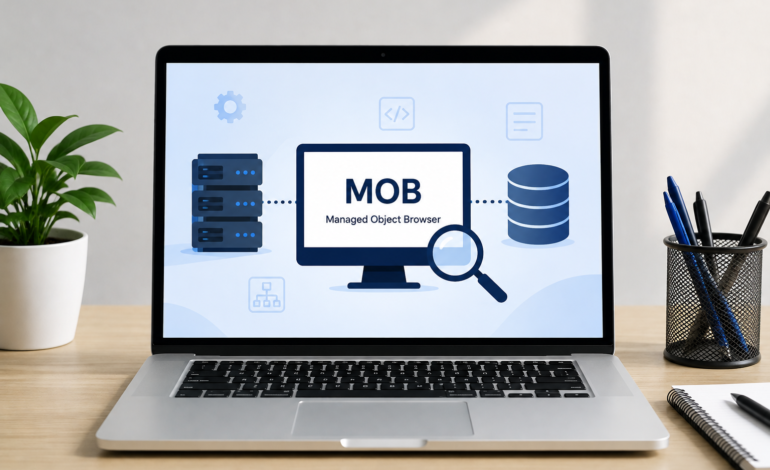
Managed Object Browser, commonly abbreviated as MOB, is an interface that exposes parts of the VMware vSphere object model through a web browser.
A VMware environment contains many resources that are represented internally as objects. These can include:
- Virtual machines
- ESXi hosts
- Datacenters
- Datastores
- Clusters
- Folders
- Resource pools
- Network resources
- Management services
Each resource can have properties, relationships, identifiers, and operations associated with it.
The browser provides a way to inspect this information directly. This is particularly useful when the regular vSphere Client does not provide enough technical detail for a particular investigation.
Unlike conventional desktop software, the MOB is normally accessed through the VMware management environment rather than installed as a separate application.
Understanding Managed Objects
To understand this interface, it is important to understand managed objects.
A managed object is a server-side representation of a VMware resource or service. It contains information that allows VMware management software and APIs to identify and interact with that resource.
For example, a virtual machine has an internal representation containing information about its configuration and current state. Similar representations exist for hosts, datastores, folders, and other resources.
These objects can expose:
- Configuration information
- Runtime values
- Object identifiers
- Relationships
- Capabilities
- Methods
- Status information
This object-based structure is one of the foundations of VMware’s management architecture.
What Are Object Properties?
Properties describe different characteristics of an object.
Depending on the resource, they may contain information about:
- Hardware
- Storage
- Networking
- Configuration
- Runtime state
- Status
- Relationships
- Capabilities
Inspecting these values can help an administrator understand what is happening inside a live environment.
Managed Object References and MOIDs
A Managed Object Reference, or MOR, identifies a specific server-side object.
You may also encounter the term MOID, meaning Managed Object ID. These identifiers are commonly used when working with VMware APIs, automation, logs, and troubleshooting procedures.
An internal identifier may look similar to:
vm-141
The actual value depends on the environment.
Object identifiers are useful because a friendly name such as “Production-Web-01” may not be enough for an API or support procedure. An internal reference provides a more precise way to identify the resource.
How Does the Object Browser Work?
The underlying concept is based on VMware’s object model.
A simplified workflow looks like this:
VMware infrastructure → Managed resources → Object properties and relationships → Browser interface → Administrator
Users can navigate between related objects and inspect the information associated with each one.
For example, an investigation may move through a structure such as:
Root Folder → Datacenter → Host → Virtual Machine
Another investigation might involve:
Datacenter → Datastore → Virtual Machine
The exact hierarchy depends on the resource being investigated.
This makes the interface useful as an object inspection tool, especially when administrators need to understand relationships between infrastructure components.
Managed Object Browser Features
The main capabilities focus on inspection, navigation, runtime information, and API understanding.
Object Inspection
Users can examine the properties and information associated with server-side resources.
This can be helpful when investigating configuration problems or unusual behavior that is not obvious through the standard management interface.
Object Hierarchy Navigation
Resources can be followed through their relationships.
This helps administrators understand where a virtual machine, host, datastore, or other resource fits within the broader infrastructure.
Runtime Information
Live information associated with an object can provide additional context during troubleshooting.
For example, administrators may compare runtime values with the expected configuration or information shown in another management tool.
Object Identification
Internal references can help connect API output, logs, support documentation, and VMware resources.
API Exploration
Developers can use the interface to understand the relationship between VMware resources and API objects.
Information such as object types, properties, methods, and references can provide useful context when developing integrations or troubleshooting scripts.
Method Visibility
Some objects expose methods that can be viewed through the interface.
Because certain operations can affect server state, users should understand a method and its parameters before attempting to execute it.
Benefits of Managed Object Browser
The value of this interface comes mainly from the additional visibility it provides.
Deeper Infrastructure Visibility
The standard vSphere Client simplifies many technical details for easier administration. The object browser can expose information closer to the underlying management model.
Advanced Troubleshooting
When a problem involves an internal property or object relationship, direct inspection can help narrow down possible causes.
Better API Understanding
Developers can use live objects to better understand the VMware API and compare documentation with actual infrastructure behavior.
Easier Object Identification
Internal references can be useful when support procedures or automation scripts require a specific resource identifier.
Useful for Different Technical Roles
The tool can be valuable to:
- VMware administrators
- Infrastructure engineers
- Automation developers
- API developers
- Technical support teams
Improved Technical Knowledge
Learning how VMware represents infrastructure as objects can help administrators develop a stronger understanding of the platform.
Features and Benefits at a Glance
| Capability | Benefit | Typical User |
|---|---|---|
| Object inspection | Detailed infrastructure visibility | Administrator |
| Property inspection | Helps investigate configuration and state | Administrator |
| Object navigation | Shows resource relationships | Infrastructure engineer |
| MOID identification | Provides precise resource references | Developer |
| Runtime information | Supports live troubleshooting | Support engineer |
| API exploration | Helps understand VMware APIs | Developer |
| Method visibility | Supports specialized procedures | Advanced administrator |
| Object relationships | Improves infrastructure understanding | Technical users |
What Is Managed Object Browser Used For?
The main use is advanced inspection of VMware infrastructure.
Common scenarios include:
- Finding internal object IDs
- Investigating virtual machine properties
- Examining datastore information
- Understanding object relationships
- Troubleshooting unusual resource states
- Investigating API behavior
- Supporting automation development
- Following specialized technical procedures
- Examining plugin or extension information
It is most valuable when the normal management interface does not provide enough information to answer a technical question.
How to Use the Tool
The exact access procedure depends on the VMware version and environment. However, the general workflow is straightforward.
Step 1: Identify the Target
Determine which resource needs investigation.
It could be:
- A virtual machine
- An ESXi host
- A datastore
- A datacenter
- A cluster
- A network resource
- Another managed component
Step 2: Verify Permissions
Make sure your account has the necessary authorization.
Use the minimum level of access required for the task.
Step 3: Confirm the VMware Version
Before changing configuration or following an older tutorial, identify the installed VMware release.
Administrative procedures can differ between versions.
Step 4: Access the Interface
For environments where the interface is available, administrators typically use the appropriate VMware management endpoint through a browser.
The exact URL and availability should be confirmed against documentation for the installed version.
Step 5: Locate the Required Object
Navigate through the available hierarchy until you reach the resource you need.
Step 6: Inspect Properties
Review the relevant information, including:
- Object type
- Object name
- Object reference
- Configuration
- Runtime state
- Related resources
Step 7: Review Methods Carefully
If a troubleshooting procedure requires an operation, verify its purpose and parameters before execution.
Step 8: Record Your Findings
Document important object references, property values, and observations.
This can make future troubleshooting and support communication easier.
Managed Object Browser Setup Guide
The setup process differs from installing traditional software because the interface is associated with VMware’s management services.
Before enabling access, determine whether it is actually required.
Ask:
- What problem am I investigating?
- Which resource needs inspection?
- Do I need an internal object reference?
- Can the task be completed through PowerCLI or another supported tool?
- Is temporary access sufficient?
Checking the Configuration
In applicable VMware environments, an advanced setting historically associated with the interface is:
Config.HostAgent.plugins.solo.enableMob
Because configuration behavior can change between VMware releases, administrators should verify the correct procedure for their exact version before modifying an advanced setting.
Temporary Access
If access is enabled specifically for troubleshooting, treat it as temporary.
After the investigation:
- Complete the required inspection.
- Record relevant information.
- Perform only approved operations.
- Close the session.
- Disable temporary access when appropriate.
Setup Checklist
| Stage | What to Verify | Recommended Approach |
|---|---|---|
| Version | VMware release | Confirm before making changes |
| Purpose | Reason for access | Define the task |
| Permissions | User authorization | Use least privilege |
| Security | Network exposure | Restrict management access |
| Configuration | Relevant setting | Follow current documentation |
| Inspection | Target resource | Verify the correct object |
| Operations | Available methods | Understand before execution |
| Documentation | Findings | Record important references |
| Completion | Temporary access | Disable when no longer needed |
Object Inspection for Developers
Developers working with VMware APIs can benefit from understanding the underlying object structure.
During application development, a developer may need to determine:
- Which object represents a resource?
- What is its internal reference?
- Which properties are available?
- What values are returned?
- Which objects are related?
- Which methods are exposed?
This information can help when developing:
- Monitoring applications
- VMware integrations
- Automation scripts
- Reporting systems
- Infrastructure tools
- API clients
A practical development process can be:
Explore → Identify → Document → Automate → Test
The browser is most useful during the exploration and identification stages. Production automation can then be implemented through supported APIs, SDKs, PowerCLI, or other appropriate tools.
Object Inspection for System Administrators
Administrators typically use the interface when normal management screens do not provide enough information.
For example, a support procedure might request an internal object reference. Instead of relying on a display name, an administrator can identify the corresponding object and document its internal identifier.
Similarly, if an API operation returns an unexpected result, examining the live object can help determine whether the problem involves:
- The wrong resource
- An unexpected state
- A property value
- An object relationship
- Automation logic
- API assumptions
Managed Object Browser Examples
Example 1: Finding a Virtual Machine ID
Suppose a support procedure requests the internal identifier of a virtual machine.
The administrator can navigate to the appropriate VM object and identify its reference.
A value may look like:
vm-141
The actual identifier varies between environments.
Example 2: Investigating a Datastore
A datastore’s friendly name may not be the same as its internal object reference.
By inspecting the relevant resource, an administrator can connect the display name with the underlying object.
Example 3: Investigating an API Problem
Suppose an automation script expects a specific property.
The administrator can inspect the relevant object and compare its live information with the API documentation.
This can reveal whether the problem is related to the script, selected resource, object state, or API assumptions.
Troubleshooting Guide
The Interface Does Not Open
Possible causes include:
- The service is unavailable.
- The URL is incorrect.
- The VMware version behaves differently.
Check the installed version and current documentation before changing configuration.
HTTP 401 Unauthorized
An authentication error can be related to:
- Credentials
- Permissions
- Authentication policies
- Browser behavior
- Enterprise security controls
Verify each factor rather than assuming the service itself is unavailable.
The Wrong Resource Appears
Check:
- Server name
- Object type
- Object reference
- Inventory location
- Current environment
Information Looks Different From the vSphere Client
The graphical client and underlying object model may present information at different levels.
A difference does not automatically indicate a problem.
A Method Fails
Check:
- Correct object
- Method name
- Parameters
- Permissions
- Object state
- VMware version
- Current documentation
Avoid repeatedly running an operation without understanding the cause of the failure.
Security Best Practices
Because the interface exposes internal management information and may provide access to operations, it should be treated as a privileged administrative component.
Follow these practices:
- Use it only when there is a clear technical requirement.
- Restrict access to authorized personnel.
- Use least-privilege permissions.
- Avoid exposing management services to untrusted networks.
- Verify the target resource before performing changes.
- Never execute an unfamiliar method.
- Review parameters carefully.
- Maintain appropriate backups before risky operations.
- Follow current VMware documentation.
- Disable temporary access when the investigation is complete.
Security should always take priority over convenience.
Managed Object Browser vs. vSphere Client
These tools serve different purposes.
| Capability | Object Browser | vSphere Client |
|---|---|---|
| Primary purpose | Technical inspection | Daily administration |
| Interface | Technical web interface | Graphical interface |
| Object details | More detailed | Simplified |
| Object references | Easy to inspect | Often abstracted |
| API exploration | Useful | Limited |
| Routine management | Not ideal | Excellent |
| Advanced troubleshooting | Useful | Useful for common issues |
| Learning curve | Higher | Lower |
For everyday administration, the vSphere Client is generally more convenient.
For deeper object-level investigation, the browser can provide information that is not presented as clearly in the graphical interface.
Managed Object Browser vs. PowerCLI
PowerCLI and the object browser can complement each other.
| Tool | Main Strength | Best Use |
|---|---|---|
| Object Browser | Object inspection | Advanced investigation |
| PowerCLI | Automation | Repetitive and bulk tasks |
| vSphere Client | Graphical management | Daily administration |
| VMware API | Programmatic access | Custom applications |
| SDK | Software development | VMware integrations |
| Logs | Historical information | Error investigation |
Use PowerCLI when the goal is automation or bulk administration.
Use the object browser when the goal is understanding a particular object’s internal representation or investigating API-related information.
Common Mistakes to Avoid
Using the Tool for Everything
It is not intended to replace normal administration tools.
Leaving Access Enabled
Temporary access should not be left open unnecessarily.
Executing Unknown Methods
An available method is not necessarily a safe method to test.
Ignoring Version Differences
Old tutorials can describe procedures that no longer apply.
Using Excessive Permissions
Always use the minimum access required.
Skipping Backups
Before risky administrative operations, follow appropriate backup and recovery procedures.
Frequently Asked Questions
What is Managed Object Browser?
It is a VMware interface for inspecting managed resources, their properties, relationships, identifiers, and available operations.
What is it mainly used for?
It is mainly used for advanced troubleshooting, object inspection, API exploration, identifying internal references, and specialized administrative procedures.
How does it work?
It exposes information from the VMware object model through a browser-based interface, allowing users to navigate related resources and inspect their properties.
Is it standalone software?
No. In the VMware context, it is generally associated with the VMware management environment rather than being installed as a separate desktop application.
What is a MOID?
A MOID is a Managed Object ID used to identify a specific resource in the VMware object model.
Is it safe?
It can be safe when properly restricted and used by authorized personnel. Because some operations can affect infrastructure, it should be treated as a privileged management interface.
Can developers use it?
Yes. Developers can use it to understand object types, properties, references, relationships, and API behavior.
Can administrators use it?
Yes. It can be useful for advanced troubleshooting and infrastructure investigation.
Can it replace PowerCLI?
No. PowerCLI is better suited for automation, scripting, reporting, and repetitive operations.
Can it replace the vSphere Client?
No. The graphical client is generally better for routine VMware administration.
Conclusion
Managed Object Browser provides a deeper view of VMware’s object-based management environment, making it useful for advanced troubleshooting, object inspection, API exploration, and infrastructure analysis. By examining managed objects, properties, relationships, and internal identifiers, administrators and developers can better understand how VMware resources are represented and connected.
For everyday management, the vSphere Client remains a practical choice, while PowerCLI and VMware APIs are better suited to automation and software development. The object browser is most valuable when you need technical information that may not be easily visible through standard management tools.
When using it, always follow version-specific documentation, use appropriate permissions, avoid unnecessary changes, and treat advanced operations carefully. With the right approach, this interface can be a useful resource for VMware administrators, developers, and IT professionals who need greater visibility into their virtual infrastructure.