How Secure Boot Works: A Beginner-Friendly Explanation:

Key Takeaways
Before diving into the technical details, here are the most important points about Secure Boot:
- Secure Boot is a security feature built into UEFI firmware that helps protect your computer during startup.
- It verifies the digital signatures of boot files before Windows loads.
- Only trusted software is allowed to run during the boot sequence.
- Secure Boot helps prevent bootkits, rootkits, and firmware-level malware.
- Windows 11 recommends Secure Boot as part of its modern security requirements.
- Secure Boot works alongside TPM 2.0 to create a stronger security foundation.
- Keeping Secure Boot enabled is one of the easiest ways to improve device security.
Related Reading:
If you’re new to this topic, start with our guide “Secure Boot: What Is It and How It Matters” to understand the basics before learning how the technology works.
Cyber threats have evolved far beyond traditional viruses. Modern attackers often target the earliest stages of a computer’s startup process, where conventional antivirus software cannot provide protection. These attacks, known as boot-level attacks, can load malicious code before the operating system starts, making them difficult to detect and remove.
This is where Secure Boot plays a critical role.
Secure Boot is a built-in security feature of UEFI (Unified Extensible Firmware Interface) that ensures only trusted software is allowed to start when your computer powers on. Instead of allowing any bootloader or operating system to run, it checks the authenticity of every startup component using digital signatures.
Understanding how Secure Boot works is essential for anyone using Windows 11 or a modern PC. Whether you’re a student, IT professional, gamer, or everyday computer user, knowing how this technology protects your device helps you make better security decisions.
In this beginner-friendly guide, you’ll learn:
- What Secure Boot is
- How the Secure Boot process works
- Why Windows 11 relies on Secure Boot
- How Secure Boot prevents malware
- The relationship between Secure Boot and TPM 2.0
- Common misconceptions about Secure Boot
By the end of this guide, you’ll understand why Secure Boot is considered one of the most important security features in modern computers.
What Is Secure Boot?
Secure Boot is a firmware-based security feature included in UEFI firmware. Its primary purpose is to protect your computer from unauthorized software during the startup process.
When you turn on your computer, several critical components load before Windows appears. If attackers manage to replace or modify these components, they can gain complete control of your system before your antivirus software even starts.
Secure Boot prevents this by checking the digital signature of every startup file.
If the software has been signed by a trusted authority, the startup process continues.
If the software has been modified, corrupted, or comes from an untrusted source, Secure Boot immediately blocks it from loading.
This verification process creates a trusted startup environment that protects your operating system from advanced threats.
Why Was Secure Boot Introduced?
Older computers using the traditional BIOS firmware had very limited security during startup.
Attackers could install malicious bootloaders or firmware-based malware without users noticing.
Microsoft and hardware manufacturers introduced UEFI Secure Boot to solve this problem.
Instead of trusting every startup file, UEFI now verifies that each component is authentic before allowing it to execute.
This simple idea dramatically improves computer security.
Why Secure Boot Matters
Many people assume antivirus software protects every part of their computer.
Unfortunately, that’s not true.
Antivirus software usually begins working after Windows has loaded.
That leaves a small but critical gap during the startup process.
Cybercriminals exploit this gap using:
- Bootkits
- Rootkits
- Firmware malware
- Unauthorized bootloaders
- Startup tampering
Because these threats run before Windows starts, they often bypass traditional security software.
Secure Boot closes this gap.
It ensures every startup component is verified before Windows loads, significantly improving boot integrity and reducing the risk of early-stage attacks.
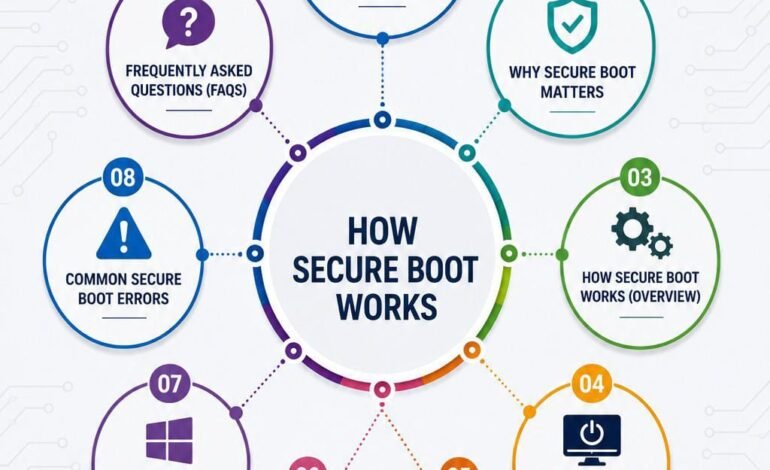
How Secure Boot Works
Now let’s understand how Secure Boot works step by step.
Although the process sounds technical, it’s actually quite straightforward.
Think of Secure Boot as a security guard checking everyone’s identity before allowing them into a secure building.
Every startup component must prove it is trusted before moving to the next stage.
Step 1: Power Button Is Pressed
Everything begins when you press the power button.
Instead of loading Windows immediately, the motherboard starts the UEFI firmware.
UEFI replaces the older BIOS found on legacy systems.
Unlike BIOS, UEFI supports advanced security technologies, faster startup times, larger storage devices, and modern operating systems.
Step 2: UEFI Firmware Initializes Hardware
The UEFI firmware performs a hardware check.
It initializes:
- CPU
- RAM
- SSD or HDD
- Graphics processor
- Keyboard
- Mouse
- Other connected devices
This ensures all essential hardware is functioning correctly before continuing.
Step 3: Firmware Authentication Begins
Now Secure Boot becomes active.
The firmware checks the digital signatures of startup software.
This includes:
- Windows Boot Manager
- Bootloader
- Operating system loader
- Critical firmware files
Only software signed by trusted certificate authorities, such as Microsoft or approved hardware vendors, is allowed to continue.
Unknown or modified files are rejected immediately.
Step 4: The Chain of Trust
One of the most important concepts behind Secure Boot is the Chain of Trust.
Instead of verifying everything at once, each trusted component verifies the next one.
The process looks like this:
UEFI Firmware
↓
Windows Boot Manager
↓
Windows Boot Loader
↓
Windows Kernel
↓
System Drivers
↓
Operating System
If any component fails verification, the startup process stops before malicious code can execute.
This layered verification creates a secure startup environment.
Step 5: Windows Loads Safely
Once every startup component has passed verification, Windows begins loading.
Because every stage has already been authenticated, the operating system starts in a trusted environment.
This process helps protect:
- Personal files
- User accounts
- Encryption keys
- System settings
- Device security
Secure Boot Process Diagram
Below is a simplified representation of the Secure Boot process.
Power Button
      │
      ▼
UEFI Firmware Starts
      │
      ▼
Hardware Initialization
      │
      ▼
Secure Boot Verification
      │
      ▼
Windows Boot Manager
      │
      ▼
Windows Boot Loader
      │
      ▼
Windows Kernel
      │
      ▼
System Drivers
      │
      ▼
Windows Desktop
Suggested Image Alt Text:
Flow diagram showing how Secure Boot verifies each startup component from UEFI firmware to the Windows operating system using a trusted chain of trust.
Why the Chain of Trust Is Important
Imagine a bank vault that requires multiple security checkpoints.
Each checkpoint verifies the identity of the next person before allowing access.
Secure Boot follows the same principle.
Every startup component validates the next one before execution.
If attackers modify even one file, the chain breaks.
The computer immediately detects the problem and prevents unauthorized software from running.
This verification process is known as boot integrity, and it is one of the biggest advantages of Secure Boot.
How Secure Boot Protects Windows 11
Windows 11 was designed with modern cybersecurity threats in mind.
Unlike previous versions of Windows, Windows 11 places greater emphasis on hardware-based security.
Secure Boot is an important part of that strategy because it helps ensure that Windows starts in a trusted state.
When Secure Boot is enabled, Windows can better protect sensitive system components and reduce the risk of malware that attempts to load before the operating system.
Secure Boot also complements other Windows security features, including virtualization-based security, driver integrity checks, and hardware-backed protections. Combined with technologies like TPM 2.0, it creates a stronger security foundation for personal and business computers.
Does Secure Boot Improve Security?
The short answer is yes. Secure Boot is one of the most effective hardware-based security features available on modern computers because it protects your system before the operating system starts.
Traditional antivirus software scans files and processes after Windows has loaded. Secure Boot works much earlier by verifying every critical startup component before it executes. This early verification makes it significantly harder for attackers to compromise your system.
Benefits of Secure Boot
- Prevents bootkits and rootkits from loading
- Verifies trusted operating system files
- Protects the boot manager from unauthorized changes
- Reduces firmware-level attacks
- Improves device security and system stability
- Supports modern Windows security features
- Maintains boot integrity throughout the startup process
Although Secure Boot is not a replacement for antivirus software, it provides a strong first layer of defense. When combined with updated software, strong passwords, and trusted security tools, it helps create a more secure computing environment.
Secure Boot vs TPM 2.0
Many users think Secure Boot and TPM 2.0 are the same technology. While they often work together, they perform different tasks.
| Feature | Secure Boot | TPM 2.0 |
|---|---|---|
| Main Purpose | Verifies trusted software during startup | Stores encryption keys and security credentials |
| Location | UEFI Firmware | Dedicated hardware security chip |
| Protects Against | Bootkits, rootkits, unsigned bootloaders | Credential theft, encryption attacks |
| Active Stage | Before Windows loads | During and after Windows startup |
| Required for Windows 11 | Supported on most compatible devices | Required on most Windows 11 installations |
| Security Focus | Secure operating system startup | Hardware-based cryptographic protection |
Both technologies complement each other. Secure Boot ensures that Windows starts safely, while TPM 2.0 protects sensitive information such as encryption keys and login credentials.
Upcoming Guide: Secure Boot vs TPM 2.0: What’s the Difference? (Future internal link)
Secure Boot vs Legacy BIOS
Secure Boot is only available on systems using UEFI firmware. Older computers with Legacy BIOS do not support Secure Boot.
| Feature | UEFI with Secure Boot | Legacy BIOS |
|---|---|---|
| Secure Boot Support | Yes | No |
| Digital Signature Verification | Yes | No |
| Boot Security | High | Limited |
| Startup Speed | Faster | Slower |
| Supports Large Drives | Yes | Limited |
| Modern Windows Compatibility | Excellent | Limited |
If you’re using Windows 11, UEFI with Secure Boot provides better security and compatibility than Legacy BIOS.
Can Secure Boot Prevent Malware?
Secure Boot helps stop several types of malware before they have a chance to load.
It is particularly effective against:
- Bootkits
- Rootkits
- Unauthorized bootloaders
- Firmware tampering
- Startup malware
However, Secure Boot does not protect against:
- Phishing attacks
- Malicious email attachments
- Ransomware downloaded after Windows starts
- Unsafe browsing habits
For complete protection, Secure Boot should be combined with antivirus software, regular updates, and safe online practices.
Common Secure Boot Errors
Although Secure Boot usually works automatically, users sometimes encounter startup issues.
Some of the most common errors include:
Secure Boot State Unsupported
This message usually appears when your system is running in Legacy BIOS mode instead of UEFI mode.
Secure Boot Is Disabled
Some motherboards ship with Secure Boot turned off by default. You may need to enable it manually in the UEFI firmware settings.
Invalid Signature Detected
This error indicates that Secure Boot has detected an unsigned or modified boot file and blocked it from loading.
Windows Won’t Boot After Enabling Secure Boot
This can happen if Windows was originally installed using Legacy BIOS or MBR partitioning. Converting the system to GPT and UEFI mode may be required.
Coming Soon: Common Secure Boot Errors and How to Fix Them (Future internal link)
Expert Tip
Keep Secure Boot Enabled Unless You Have a Specific Reason to Disable It.
For most users, Secure Boot should remain enabled at all times. Disabling it can expose your computer to boot-level malware and reduce the effectiveness of Windows security features.
Only consider disabling Secure Boot if you need to install an unsupported operating system, use unsigned drivers, or perform advanced testing. If you do disable it, make sure you understand the security implications and re-enable it when you’re finished.
Frequently Asked Questions
What is Secure Boot and how does it work?
Secure Boot is a UEFI firmware feature that verifies the digital signatures of startup software. Only trusted components are allowed to load, protecting your computer from boot-level threats.
Does Secure Boot improve security?
Yes. It improves security by preventing unauthorized software, bootkits, and rootkits from loading before Windows starts.
Is Secure Boot required for Windows 11?
Windows 11 requires compatible hardware that supports Secure Boot, and many systems have it enabled by default to meet Microsoft’s security requirements.
Can I disable Secure Boot?
Yes, but doing so reduces startup protection. Only disable Secure Boot if it’s necessary for compatibility with certain operating systems or software.
Does Secure Boot affect gaming performance?
No. Secure Boot verifies startup files during boot and has no measurable impact on game performance once Windows is running.
Can Linux run with Secure Boot enabled?
Yes. Many modern Linux distributions include signed bootloaders that support Secure Boot.
How do I know if Secure Boot is enabled?
You can check its status using Windows System Information or the UEFI firmware settings. We’ll cover the exact steps in our upcoming guide on checking Secure Boot status.
Is Secure Boot enough to protect my computer?
No. While Secure Boot strengthens startup security, it should be used alongside antivirus software, regular system updates, and safe online practices.
Conclusion
Understanding how Secure Boot works is an important step toward improving your computer’s security. By verifying each component during the startup process, Secure Boot helps ensure that only trusted software is allowed to run.
Its chain of trust approach protects against advanced threats such as bootkits and rootkits before Windows even begins loading. Combined with UEFI firmware, TPM 2.0, and other Windows security features, Secure Boot provides a strong foundation for a secure operating system startup.
For most users, the best practice is simple: keep Secure Boot enabled, keep Windows updated, and use trusted software. These steps significantly reduce the risk of startup attacks and help maintain the integrity of your system.