Secure Boot: What It Is, How It Works, and Why It Matters

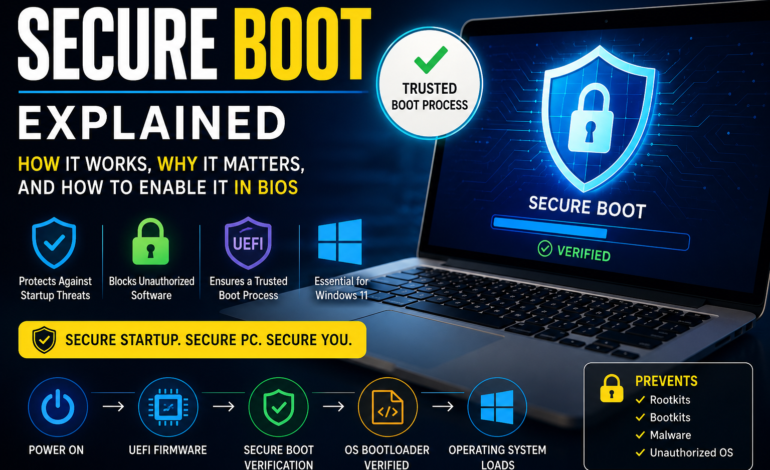
Modern computers face a growing number of cybersecurity threats, many of which target systems before the operating system even starts. To protect users from these attacks, computer manufacturers introduced Secure Boot, a security feature built into modern UEFI firmware. It ensures that only trusted software loads during startup, helping prevent malware from taking control of your PC.
Whether you are installing Windows 11, upgrading your computer, or simply learning about PC security features, understanding Secure Boot is essential. This guide explains Secure Boot, how it works, its requirements, and how you can enable or disable it safely.
What Is Secure Boot?
Secure Boot is a security feature included in UEFI firmware that verifies the authenticity of software loaded during the startup process. Before your operating system begins loading, Secure Boot checks whether the bootloader and system files contain valid digital signatures from trusted software publishers.
If any unauthorized or malicious software attempts to load during startup, Secure Boot blocks it automatically. This creates a trusted boot process that protects your computer from bootkits, rootkits, and other startup malware.
Simply put, Secure Boot explained means allowing only trusted software to start your computer.
What Is Secure Boot and How Does It Work
To understand how Secure Boot works, it’s important to know what happens when you power on your computer.
The firmware first performs hardware initialization and then starts the boot sequence. During this stage, the boot manager is verified using cryptographic digital signatures stored inside the UEFI firmware.
If the signature matches a trusted certificate, the operating system continues loading. If it doesn’t, Secure Boot blocks the process and prevents potentially harmful software from running.
This verification process happens automatically every time your computer starts, providing an additional layer of Secure Boot security without requiring user interaction.
BIOS vs UEFI: Understanding the Difference
Many users confuse BIOS with UEFI, but they are different technologies.
The traditional BIOS offers basic startup functionality but lacks advanced security features. UEFI is the modern replacement and includes features such as:
- Faster startup
- Larger disk support
- Graphical firmware interface
- Network capabilities
- Built-in Secure Boot support
Because Secure Boot depends on UEFI firmware, it cannot function on older systems that use only legacy BIOS mode.
Why Secure Boot Is Important
Cybercriminals increasingly target computers before Windows even loads. Startup malware can hide from antivirus software and gain deep access to your system.
Secure Boot helps protect against these threats by:
- Preventing unauthorized bootloaders
- Blocking rootkits and bootkits
- Verifying trusted operating system files
- Improving overall Windows security
- Protecting sensitive business and personal data
- Enhancing PC security features
For organizations and individual users alike, Secure Boot significantly improves startup protection.
Secure Boot Requirements
Before enabling Secure Boot, your system must meet several requirements.
These include:
- UEFI firmware support
- GPT partition style
- Compatible motherboard firmware
- Supported operating system
- Updated firmware version
- Trusted Platform Module (TPM) for Windows 11 (recommended alongside Secure Boot)
While Secure Boot and the Trusted Platform Module (TPM) are separate technologies, Microsoft recommends using both together to maximize system security.
Secure Boot Settings
Every motherboard manufacturer provides Secure Boot options within the firmware settings.
Typical Secure Boot settings include:
- Enable Secure Boot
- Disable Secure Boot
- Standard Mode
- Custom Mode
- Restore Factory Keys
- Install Default Keys
The exact menu names may vary depending on manufacturers such as ASUS, MSI, Gigabyte, Dell, Lenovo, or HP.
How to Enable Secure Boot in BIOS
Although many people say “enable Secure Boot in BIOS,” the setting is actually located inside modern UEFI firmware.
Follow these steps:
- Restart your computer.
- Enter the firmware settings by pressing the appropriate key (Delete, F2, Esc, or F10).
- Switch to UEFI Mode if Legacy Mode is enabled.
- Locate the Secure Boot menu.
- Select Enable Secure Boot.
- Save your changes.
- Restart your computer.
After rebooting, Windows can confirm whether Secure Boot is enabled through the System Information tool.
When Should You Disable Secure Boot
In some situations, users may choose to Disable Secure Boot temporarily.
Common reasons include:
- Installing unsupported operating systems
- Running certain Linux distributions
- Using older hardware
- Installing unsigned drivers
- Testing custom bootloaders
However, disabling Secure Boot reduces startup protection. If you no longer need these configurations, re-enable Secure Boot to restore full security.
Microsoft Secure Boot and Windows 11
Microsoft Secure Boot is a core requirement for Windows 11 compatibility.
Microsoft uses Secure Boot together with TPM 2.0 to improve operating system security and reduce malware attacks during startup.
These technologies work together to provide:
- Stronger device protection
- Better Windows security features
- Improved firmware security
- Trusted startup verification
- Enhanced malware resistance
For users planning to install Windows 11, Secure Boot is highly recommended.
Advantages of Secure Boot
Secure Boot provides numerous benefits for modern computers.
Some of its major advantages include:
- Protects against startup malware
- Verifies trusted software
- Improves Secure Boot security
- Prevents unauthorized operating system modifications
- Supports Windows 11 security requirements
- Creates a trusted boot process
- Enhances PC security features
- Helps maintain system integrity
Best Practices for Secure Boot
To maximize security:
- Keep UEFI firmware updated.
- Enable TPM when available.
- Install Windows updates regularly.
- Avoid disabling Secure Boot unless necessary.
- Download software only from trusted sources.
- Verify firmware updates from official manufacturers.
- Maintain updated antivirus protection.
Following these practices significantly improves overall system security.
Conclusion
Secure Boot is one of the most important security technologies included in modern computers. By verifying digital signatures during the boot sequence, it creates a trusted boot process that protects against malware before Windows starts.
Whether you’re upgrading to Windows 11 or improving your computer’s security, enabling Secure Boot is a smart decision. Combined with Trusted Platform Module (TPM) and modern Windows security features, Secure Boot provides stronger protection against today’s evolving cyber threats.
Frequently Asked Questions (FAQs)
What is Secure Boot?
Secure Boot is a UEFI security feature that allows only trusted software with valid digital signatures to load during system startup.
Is Secure Boot required for Windows 11?
Yes. Microsoft recommends Secure Boot along with TPM 2.0 for installing and running Windows 11 securely.
Can I disable Secure Boot?
Yes. You can disable Secure Boot from your UEFI firmware settings, but doing so reduces startup protection.
Does Secure Boot improve security?
Yes. It prevents unauthorized bootloaders and startup malware from loading before the operating system.