
How to Clear Cache on iPhone: Complete Guide

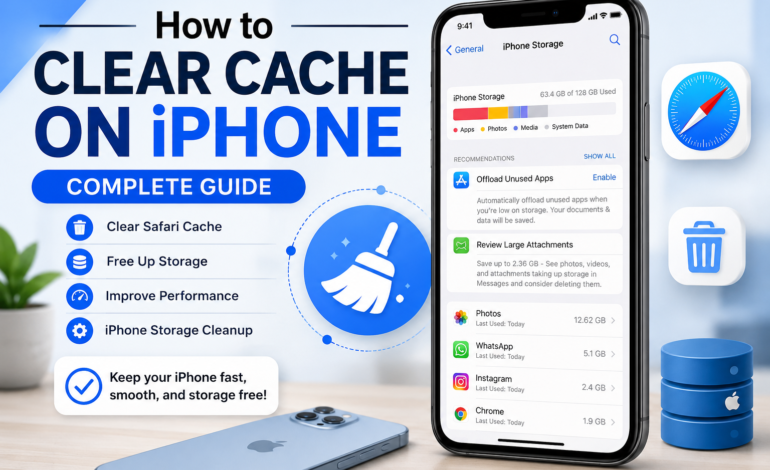
If your Apple iPhone feels slow, apps take longer to open, or you’re constantly running out of storage, it may be time to *clear cache on iPhone. Over time, your device stores **cached files, **temporary files, and browsing data to improve loading speed. While this helps apps perform faster initially, too much cache can consume valuable *storage space and affect iPhone performance.
This complete guide explains the best ways to *clear cache on iPhone, improve device speed, and perform effective *iPhone storage cleanup without losing important data
What Is iPhone Cache?
An iPhone cache is a collection of temporary data stored by apps, browsers, and the operating system. These cached files help apps load faster by saving information you’ve already accessed.
Examples of cached data include:
- Website images
- Login information
- Search history
- App thumbnails
- Streaming data
- Browser cookies
Although cache improves speed, excessive cache memory eventually occupies significant system storage, making regular cleanup beneficial.
Why Should You Clear Cache on iPhone?
Clearing cache provides several advantages for your Apple iPhone.
Benefits include:
- Free up storage on iPhone
- Improve iPhone performance
- Remove outdated temporary files
- Fix app loading issues
- Resolve browser problems
- Reduce unnecessary storage usage
- Improve overall device performance
Regular iPhone maintenance helps your phone remain responsive and efficie
Best Way to Clear Cache on iPhone
There is no single “Clear All Cache” button on iPhone. Instead, Apple recommends clearing cache from individual apps and browsers.
The best approach includes:
- Clear Safari cache
- Remove unnecessary app data
- Offload unused apps
- Delete unnecessary downloads
- Review iPhone cache settings
- Restart your device regularly
Following these methods safely removes unnecessary files without affecting your personal photos or contacts.
How to Clear Browser Cache on iPhone
Safari stores browsing data including cookies, images, and browser history.
To clear browser cache on iPhone:
- Open Settings.
- Scroll down and tap Apps > Safari (or Safari, depending on your iOS version).
- Tap Clear History and Website Data.
- Confirm your selection.
This removes:
- Browser history
- Website data
- Cached files
- Cookies
After clearing the browser cache, websites may load slightly slower the first time because new cache files need to be created.
How to Delete Cache on iPhone Apps
Unlike Android devices, iPhones don’t allow users to clear app cache directly for every app.
Instead, you can:
Offload Apps
- Open Settings.
- Tap General.
- Select iPhone Storage.
- Choose an app.
- Tap Offload App.
Offloading removes the application while preserving your documents and personal data.
Reinstall Apps
Some applications store large amounts of cache. Deleting and reinstalling these apps removes cached data completely while giving you a fresh installation
How to Clear Cache on iPhone Without Deleting Apps
Many users wonder how to clear cache on iPhone without deleting apps.
The safest methods include:
- Clear Safari website data.
- Offload apps instead of deleting them.
- Restart your iPhone.
- Update apps regularly.
- Remove downloaded offline content.
- Clear in-app cache if the application provides this option.
These techniques reduce unnecessary storage without removing your important information.
Free Up Storage on iPhone
If storage is almost full, cache isn’t the only issue.
To free up storage on iPhone, you should also:
- Delete duplicate photos
- Remove unused applications
- Delete old videos
- Empty the Recently Deleted album
- Remove downloaded music
- Optimize iCloud storage
- Enable storage recommendations in iOS settings
These actions significantly improve available storage capacity.
Review iPhone Cache Settings
Although iPhone doesn’t have a universal cache button, you can manage storage using built-in iPhone cache settings.
Navigate to:
Settings → General → iPhone Storage
Here you can:
- Monitor app sizes
- Identify large applications
- Review storage management
- Enable Offload Unused Apps
- Check available system storage
This section provides a complete overview of what’s consuming space on your device.
Does Clearing Cache Improve iPhone Performance?
Yes. Removing unnecessary cached data often improves device performance, especially if your phone has limited available storage.
Clearing cache may:
- Reduce app crashes
- Improve browser speed
- Increase available memory
- Reduce loading delays
- Improve multitasking
However, if performance issues continue after clearing cache, installing the latest software update may also help resolve bugs and optimize system performance.
Tips for Better iPhone Maintenance
Keeping your device healthy requires more than clearing cache.
Follow these maintenance tips:
- Update iOS regularly.
- Restart your iPhone weekly.
- Remove unused apps.
- Keep at least 10–20% of storage free.
- Back up important data to iCloud.
- Clear Safari cache every few months.
- Monitor battery health.
- Review storage usage regularly.
Routine iPhone maintenance keeps your device running smoothly over the long term
Common Mistakes to Avoid
When cleaning your iPhone, avoid these mistakes:
- Deleting important documents without backup
- Using untrusted cleaning apps
- Disabling automatic software updates
- Ignoring low storage warnings
- Clearing data instead of cache unintentionally
Always review what you’re deleting before confirming any act
Conclusion
Knowing how to clear cache on iPhone is an essential part of keeping your device fast, organized, and secure. Regularly removing *cached files, reviewing **iPhone cache settings, and performing *iPhone storage cleanup helps improve iPhone performance while freeing valuable storage space.
Whether you’re clearing Safari data, managing app storage, or optimizing *iCloud storage, these simple steps can make your Apple iPhone run more efficiently. Make cache cleanup part of your routine *iPhone maintenance to enjoy a smoother and more reliable user experienc
Frequently Asked Questions
What is iPhone cache?
iPhone cache consists of temporary files stored by apps and browsers to speed up loading times.
Is it safe to clear cache on iPhone?
Yes. Clearing cache removes temporary data and generally does not delete your personal files or photos.
How often should I clear cache on iPhone?
For most users, clearing cache every one to three months is sufficient, or sooner if storage is running low or performance declines.
Does clearing cache delete photos?
No. Clearing cache does not remove your photos, videos, contacts, or messages.
Can clearing cache free up storage on iPhone?
Yes. Removing cached files, browser data, and unused app data can free up storage and improve device performance