Secure Boot vs TPM 2.0: What’s the Difference

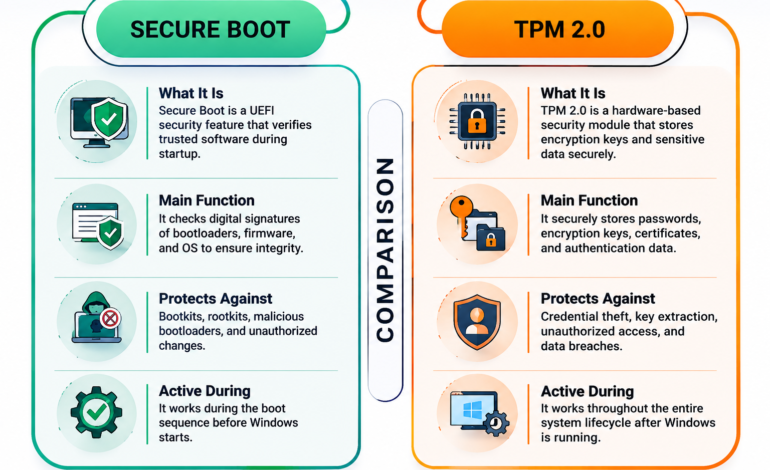
Secure Boot and TPM 2.0 are different security technologies that work together rather than compete. Secure Boot verifies trusted software during the startup process, while TPM 2.0 securely stores encryption keys, passwords, and sensitive security data. Windows 11 uses both technologies to create a stronger defense against malware, firmware attacks, and unauthorized system changes.
Start with our guide “Secure Boot: What Is It and How It Matters” before exploring how it compares with TPM 2.0.
Modern computers rely on multiple layers of security to defend against increasingly sophisticated cyber threats. Two technologies that frequently appear in Windows 11 system requirements are Secure Boot and TPM 2.0. Because they are often mentioned together, many users assume they perform the same task. In reality, they protect different parts of your computer while working together to establish a more secure computing environment.
Understanding the difference between Secure Boot vs TPM 2.0 is essential whether you’re upgrading to Windows 11, configuring a new PC, or strengthening your system’s security. Although both features contribute to a secure operating system startup, they operate independently and protect against different types of attacks.
Table of Contents
- Secure Boot vs TPM 2.0: Quick Overview
- What Is Secure Boot?
- What Is TPM 2.0?
- Secure Boot vs TPM 2.0: Key Differences
- How They Work Together
- Which One Is More Important?
- Frequently Asked Questions
Secure Boot vs TPM 2.0: Quick Comparison
| Feature | Secure Boot | TPM 2.0 |
|---|---|---|
| Primary Purpose | Verifies trusted software during startup | Protects sensitive security data and encryption keys |
| Location | UEFI firmware | Dedicated hardware chip or firmware TPM |
| Protects Against | Bootkits, rootkits, malicious bootloaders | Credential theft, encryption key attacks |
| Active During | Boot sequence | Throughout system operation |
| Windows 11 Requirement | Recommended and widely supported | Official hardware requirement |
| Main Function | Boot integrity and firmware authentication | Hardware-based security and cryptographic protection |
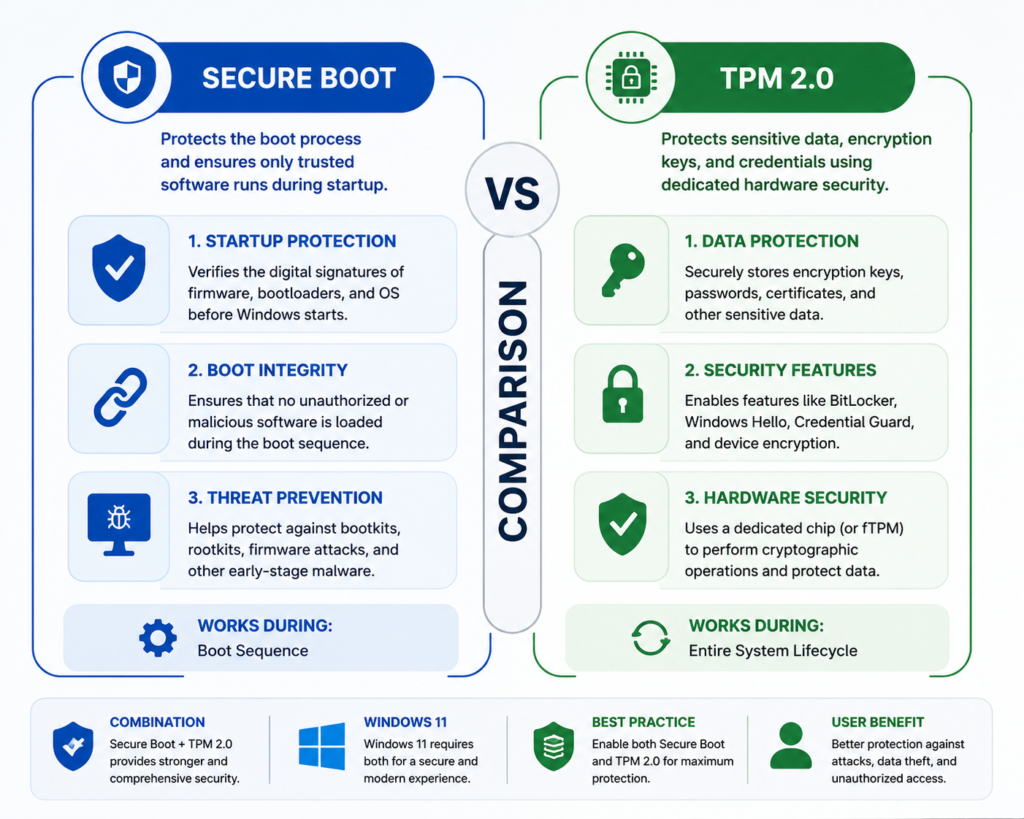
Although both technologies enhance Windows security features, they perform distinct responsibilities that together establish a stronger chain of trust.
What Is Secure Boot?
Imagine your computer’s startup process as the security checkpoint at an international airport. Before passengers are allowed to board, their identity and documents must be verified. Secure Boot follows a similar principle by checking every critical component before Windows begins to load.
Built into UEFI firmware, Secure Boot verifies the digital signatures of essential startup software, including the boot manager, operating system loader, and firmware components. If any file has been altered or originates from an untrusted source, the startup process is halted before malicious code can execute.
Secure Boot provides protection at the earliest stage of the boot sequence. This early verification helps maintain a secure startup environment before Windows loads drivers or applications.
Because of its role in malware prevention, Microsoft recommends leaving Secure Boot enabled on compatible devices running Windows 11.
Read “How Secure Boot Works: A Beginner-Friendly Explanation“ for a detailed walkthrough of the Secure Boot process and the chain of trust.
What Is TPM 2.0?
While Secure Boot protects the startup process, TPM 2.0 (Trusted Platform Module) safeguards your computer’s most valuable digital assets.
A TPM is a specialized security processor designed to perform cryptographic operations and securely store sensitive information. Instead of protecting the startup sequence, it focuses on preserving the confidentiality and integrity of security credentials throughout the system’s lifecycle.
TPM 2.0 securely stores:
- Encryption keys
- BitLocker recovery information
- Windows Hello authentication data
- Digital certificates
- Security credentials
- Cryptographic hashes
Because these secrets remain isolated within dedicated hardware or firmware, they are far more resistant to theft than information stored solely on the hard drive.
Even if an attacker gains physical access to your computer, retrieving protected encryption keys becomes significantly more difficult when TPM 2.0 is enabled.
Rather than replacing Secure Boot, TPM 2.0 extends the hardware security foundation by protecting sensitive information after the operating system has successfully started.
Secure Boot vs TPM 2.0: Key Differences Explained
Understanding the distinction between Secure Boot and TPM 2.0 is easier when you compare their responsibilities side by side. Although both technologies contribute to Windows 11 security, they protect different stages of a computer’s operation. Rather than replacing each other, they establish complementary layers of defense that strengthen your device from startup to everyday use.
Secure Boot vs TPM 2.0: Detailed Comparison
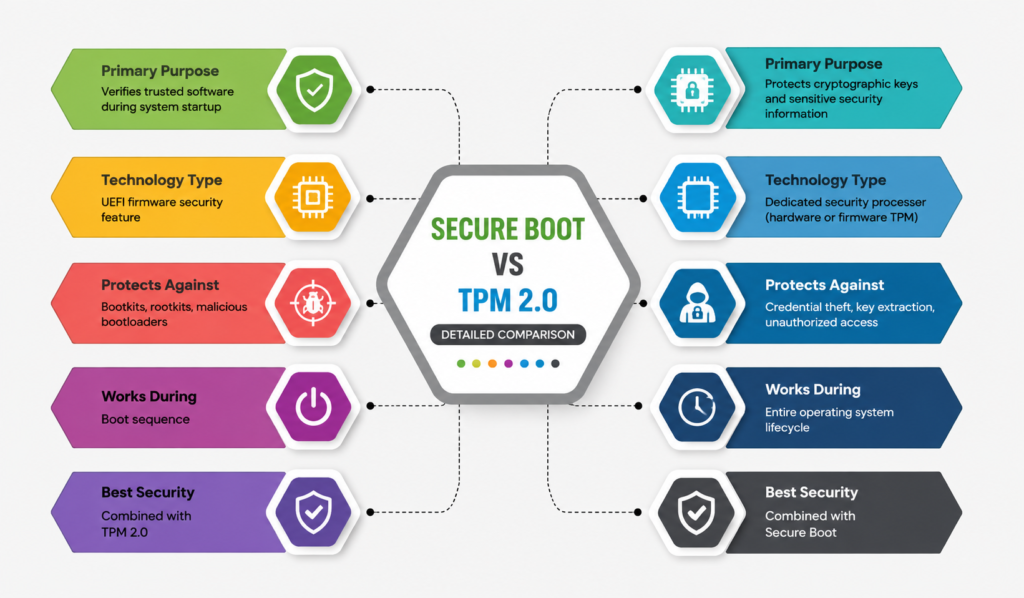
| Feature | Secure Boot | TPM 2.0 |
|---|---|---|
| Primary Purpose | Verifies trusted software during system startup | Protects cryptographic keys and sensitive security information |
| Technology Type | UEFI firmware security feature | Dedicated security processor (hardware or firmware TPM) |
| Protects Against | Bootkits, rootkits, malicious bootloaders | Credential theft, key extraction, unauthorized access |
| Works During | Boot sequence | Entire operating system lifecycle |
| Stores Encryption Keys | No | Yes |
| Supports BitLocker | Indirectly | Yes |
| Uses Digital Signatures | Yes | Yes (for cryptographic operations) |
| Windows 11 Requirement | Recommended security feature | Official hardware requirement |
| Can Function Independently | Yes | Yes |
| Best Security | Combined with TPM 2.0 | Combined with Secure Boot |
The comparison highlights an important point: Secure Boot establishes trust before Windows starts, while TPM 2.0 preserves trust after the operating system is running. Together, they create a more resilient security architecture.
How Secure Boot and TPM 2.0 Work Together
Imagine a company headquarters protected by multiple security measures.
At the entrance, a security guard checks every employee’s identification before allowing access to the building. Once inside, valuable documents are stored inside a highly secure vault that only authorized individuals can open.
This analogy reflects how Secure Boot and TPM 2.0 operate.
Secure Boot acts as the security guard. Before Windows begins loading, it verifies that every critical startup component—including the boot manager, firmware, and operating system loader—comes from a trusted source. If an unauthorized or modified component is detected, the startup process is interrupted before malicious code can execute.
Once Windows has started successfully, TPM 2.0 takes over. Instead of verifying startup software, it securely stores encryption keys, authentication credentials, and cryptographic secrets that protect your data throughout everyday use.
This layered approach forms a robust chain of trust.
The sequence typically works like this:
- UEFI firmware initializes the system.
- Secure Boot validates the integrity of startup components.
- Windows loads trusted drivers and core services.
- TPM 2.0 releases cryptographic keys only after the system is verified.
- Security features such as BitLocker, Windows Hello, and Credential Guard become fully operational.
Because each technology performs a specialized role, disabling one weakens the overall protection model even if the other remains enabled.
Which One Is More Important?
This question appears frequently among Windows users, but it doesn’t have a simple winner.
If your primary concern is protecting the startup process from firmware-level attacks, Secure Boot provides the first line of defense. It ensures that only trusted software participates in the boot sequence, reducing the likelihood of bootkits or malicious firmware compromising the system.
On the other hand, if your focus is safeguarding confidential information such as passwords, encryption keys, or authentication credentials, TPM 2.0 becomes indispensable. Its hardware-based design isolates sensitive data from the operating system, making it significantly harder for attackers to extract protected information.
Instead of asking which technology is better, it’s more accurate to ask how they complement one another.
Microsoft designed Windows 11 around a layered security model where each component contributes unique protections. Secure Boot verifies what starts, while TPM 2.0 protects what the system trusts and stores after startup.
For this reason, enabling both features offers substantially stronger protection than relying on either technology alone.
Expert Insight: Think of Secure Boot as the gatekeeper and TPM 2.0 as the vault. One controls access, while the other safeguards valuable assets. Removing either layer reduces your overall security posture.
Can Secure Boot Work Without TPM 2.0?
Yes. Secure Boot can function independently because it is integrated into the UEFI firmware rather than the TPM chip.
A computer with Secure Boot enabled can still verify trusted startup software even if TPM 2.0 is unavailable or disabled.
Windows security capabilities
- BitLocker key protection
- Windows Hello credential storage
- Device encryption
- Credential Guard
- Secure cryptographic operations
While Secure Boot continues protecting the startup sequence, the operating system loses an important hardware-backed security layer.
Can TPM 2.0 Work Without Secure Boot?
Yes, TPM 2.0 can also operate without Secure Boot.
For example, BitLocker can use TPM 2.0 to safeguard encryption keys even if Secure Boot is disabled.
Nevertheless, this configuration creates a security gap.
If startup components are no longer verified before Windows loads, malicious software could attempt to interfere with the boot process before TPM-protected services become active. Although TPM continues securing encryption keys, it cannot replace Secure Boot’s role in validating firmware and startup software.
As a result, Microsoft recommends enabling both technologies whenever the hardware supports them.
Common Myths About Secure Boot and TPM 2.0
Misconceptions about Secure Boot and TPM 2.0 often lead users to disable important security features or misunderstand their purpose. Separating facts from myths helps you make informed decisions about protecting your Windows 11 device.
Secure Boot and TPM 2.0 Are the Same Thing
Reality: They perform completely different functions.
Secure Boot verifies that trusted software loads during the boot sequence, while TPM 2.0 securely stores cryptographic keys, passwords, and authentication credentials. One protects the startup process, whereas the other safeguards sensitive information after Windows has loaded.
Secure Boot Slows Down Your Computer
Reality: Secure Boot has virtually no impact on everyday performance.
The verification process takes place during startup and typically completes within seconds. Once Windows finishes loading, Secure Boot no longer affects gaming, productivity, or application performance.
TPM 2.0 Exists Only Because of Windows 11
Reality: TPM technology has been available for many years.
Organizations have relied on Trusted Platform Modules for enterprise security, device encryption, and secure authentication long before Windows 11 was released. Microsoft’s latest operating system simply made TPM 2.0 a core requirement to strengthen default security.
Expert Tip
Keep Secure Boot and TPM 2.0 Enabled Together
Unless you have a specific technical requirement—such as testing custom firmware or installing an operating system that doesn’t support Secure Boot—leave both features enabled.
This combination provides stronger protection against firmware attacks, credential theft, ransomware, and unauthorized modifications while ensuring compatibility with Windows 11 security features like BitLocker, Windows Hello, and Credential Guard.
For most home users and businesses, enabling both technologies represents the safest configuration.
Frequently Asked Questions
Is Secure Boot better than TPM 2.0?
Neither technology is better because they solve different security challenges. Secure Boot protects the startup process, while TPM 2.0 safeguards encryption keys and authentication credentials. Together they provide stronger overall security.
Do I need both Secure Boot and TPM 2.0 for Windows 11?
Yes. Windows 11 is designed around multiple layers of security, and Microsoft recommends using both technologies to maximize protection and compatibility.
Can Windows 11 run without Secure Boot?
Some systems can install or run Windows 11 without Secure Boot enabled, but doing so reduces startup protection and may limit certain security capabilities.
Does TPM 2.0 require Secure Boot?
No. TPM 2.0 can operate independently. However, combining it with Secure Boot creates a much stronger security model.
Can Secure Boot work without TPM 2.0?
Yes. Secure Boot continues verifying trusted startup software even if TPM 2.0 is unavailable. Nevertheless, several Windows security features rely on TPM for protecting sensitive information.
Does TPM 2.0 encrypt my files?
Not directly. TPM stores the cryptographic keys used by technologies such as BitLocker, allowing encrypted data to remain protected even if the storage device is removed.
Should gamers enable Secure Boot and TPM 2.0?
Yes. Keeping both enabled improves system integrity and supports security requirements for some modern anti-cheat technologies without reducing gaming performance.
How can I check whether Secure Boot and TPM 2.0 are enabled?
Windows provides built-in tools to verify both features.
For Secure Boot How to Check If Secure Boot Is Enabled in Windows 11.
For TPM 2.0, press Windows + R, type tpm.msc, and check whether the TPM is ready for use.
Conclusion
Understanding the difference between Secure Boot vs TPM 2.0 is essential for anyone using Windows 11 or planning to upgrade to a modern computer. Although these technologies are frequently mentioned together, they serve different purposes within the overall security architecture.
Secure Boot establishes trust during the startup process by verifying firmware and boot components before Windows loads. TPM 2.0 extends that protection by securing encryption keys, authentication credentials, and sensitive cryptographic information throughout the operating system’s lifecycle.
If your computer supports both technologies, keeping them enabled is one of the simplest and most effective ways to build a more secure computing environment.